Download
my résumé
as a Word compressed zip file and Adobe
Acrobat. Need computer help? Book
now to resolve most computer
issues. Tech
support jobs.
Mac OS Kernel Panic
FAQ
If you need technical support for issues after
reading this FAQ, please visit my Tech Support page,
where I offer fee based support.
Spinning beachballs which some people
may confuse for kernel panics are rarely related
to kernel panics! Resolving kernel panics may take
steps which require you have a backup in place
first. If you don't have a backup, look over backup FAQ before
proceeding!
For more on things which may cause the system to
become sluggish enough to have a spinning
beachball cursor read
this FAQ unless one of these other clear
signs of a kernel panic is happening.
The kernel panic FAQ is divided into the following
sections:
Varieties of kernel panics
and their causes:
1. Migrating PowerPC to
Intel Macs
2. Directory
3. Drivers and Preference
Panels
4. Widgets
5. Data corruption
6. Permissions
7. RAM and motherboards
8. Other resources for
diagnosing kernel panics
9. Hands Off
software and 10.6.8
Kernel panics sometimes are visible, and other
times are not directly visible:
Sometimes Mac OS X may tell you it needs to
restart the computer with one of these two kinds
of screens:
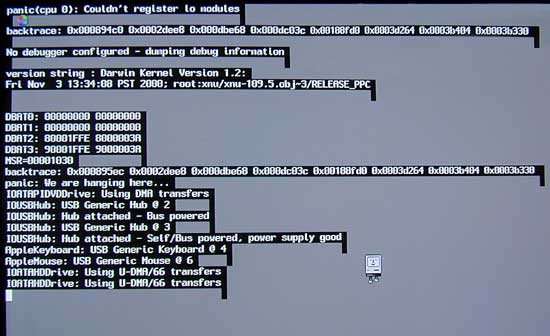
Mac OS X 10.0 to 10.1.5 will show the above type
of response on your display
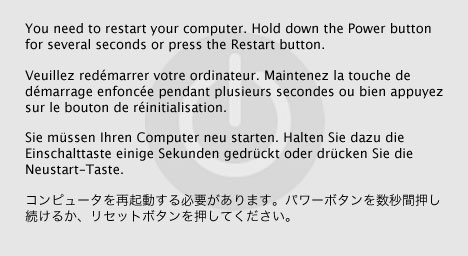
Mac OS X 10.2 will show the above image
transparently over your display
Above images obtained from Apple's description
of a kernel panic. What is NOT a kernel
panic, which you will get with some newer Macs
trying to load the hardware test with the Option-D
startup key, is the dialog that looks like:
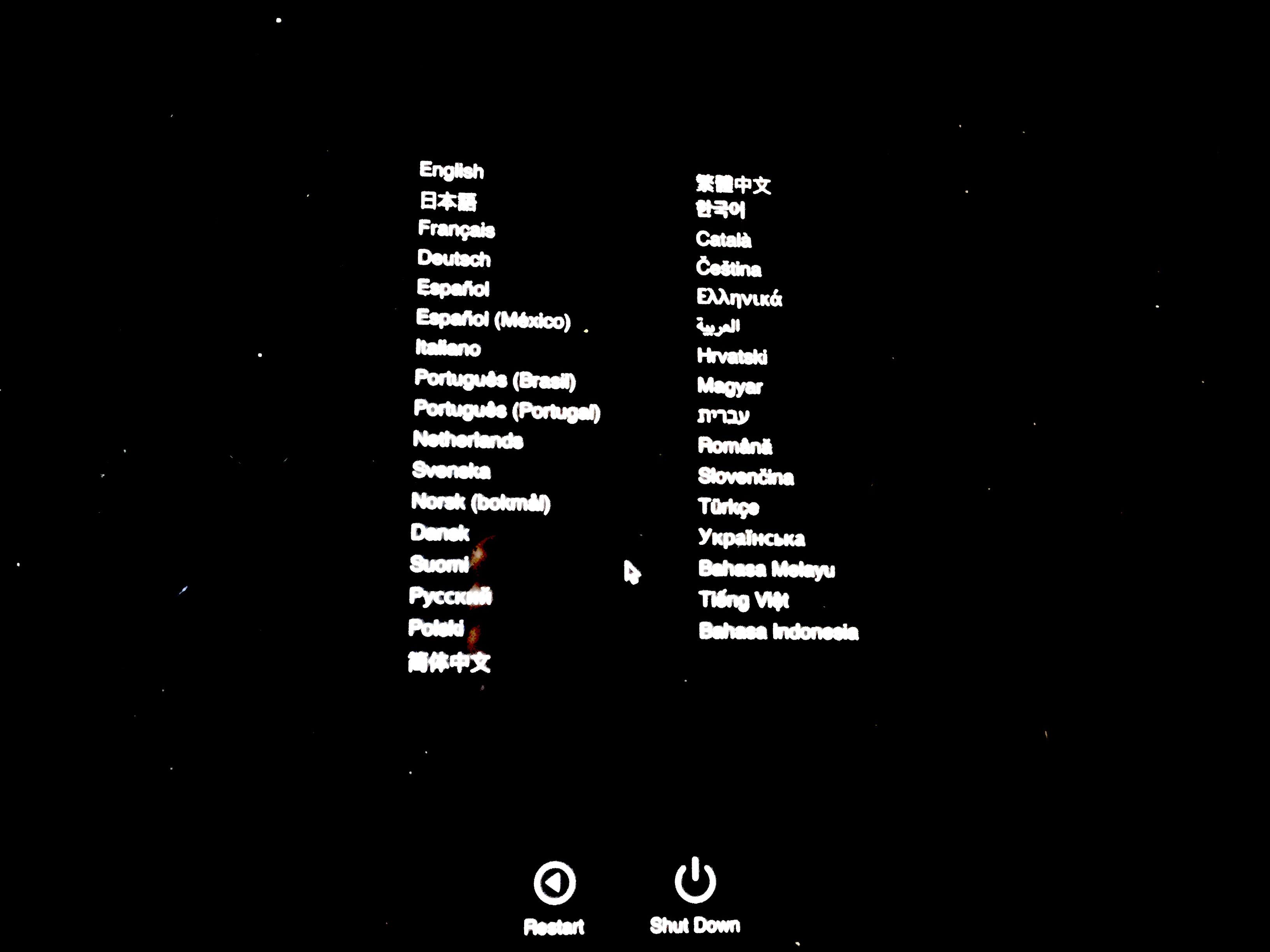
This image when you select the language in
question will run the Apple Hardware Diagnostics
immediately once you pick your language.
Mac OS X 10.9 and later change slightly in that
the machine will restart with a key stroke, or
within a few seconds of getting a Kernel Panic, as
is documented by Knowledgebase
article HT200553
Some have mentioned these images may be hard to
read on a laptop screen.
I would also look at the Panic.log file with the
Console program on your machine to see what may
have caused the kernel panic if you get one.
1. Migrating from
PowerPC to Intel
Migrating from PowerPC to Intel Macs may create a
situation where a kernel panic can happen. The
drivers are different enough between both
platforms, and the Migration Assistant program may
not always be sensitive enough to detect an issue.
Additionally, if you use Guest accounts in Snow
Leopard, a bug has been that wipes the guest
account contents entirely. Currently being
researched by some people on Apple Discussions as
to the cause. It may related to an earlier 10.4
bug that I indicated below, about using the
Migration Assistant between PowerPC and Intel
Macs. Instead if you have done so, be sure to backup at least twice and
if necessary, rename the Guest account something
else and give it admin access until the issue has
been resolved. You can also migrate from PowerPC
to Intel Macs using the user tip on: https://discussions.apple.com/docs/DOC-2295
2. Directory failures
and kernel panics
The directory may fail, due to an accident caused
by Norton Utilities or Systemworks, which may at
random corrupt a directory even when trying to
repair it. If the directory is corrupted, some
files may become missing to the operating system,
and that triggers a kernel panic if those files
are related to the operating system's own drivers.
Norton Anti-Virus will not do this, but Disk
Doctor and Speed Disk have a history of doing
this. An uninstaller has been made available here. To fix
your directory first backup your data to an
external Firewire or SCSI hard disk, and make sure
it is bootable using Carbon Copy
Cloner or Retrospect
Express. Make sure you have at least two
backups of all necessary data if you are using
Panther (Mac OS X 10.3), as there is an issue with
some Firewire drives,
including some Oxford 911 drives not listed in the
link that may cause the drive to lose all data if
it is mounted during shutdown, restart, sleep, or
startup. For more on the directory visit the Mac OS X directory FAQ.
3. Drivers and
Preference Panels
Peripheral drivers that aren't Mac OS X native may
cause a kernel panic, and you should check the Mac OS X native
software directories and search engines, and any
hardware manufacturer's website for more recent
drivers that are known to be compatible with your
version of Mac OS X. With the new Intel Macs, this
poses a new problem as not all drivers
are compatible with the Rosetta environment that
are Mac OS X native. Three special cases are
Apple hardware related that may give some
peripherals difficulty, namely Mac OS X 10.2.5 has
been known to kernel panic at certain USB hubs,
and it is recommended you upgrade
to 10.2.8 to avoid this issue. The other is
on the Flat Panel iMacs that are 700 Mhz and 800
Mhz. These iMacs have a USB port right next to the
modem port that is unable to work properly with
USB devices that require power from the computer.
And in some cases it also means the mouse has to
be plugged in the USB port on the right side of
the keyboard and not the left side of the
keyboard.
Also under some circumstances, it has been found
that using a disk utility disk with a bootable
volume older than your computer may cause a kernel
panic. This is related to the driver issue in that
each new Mac can only boot the system that was
available at the time of its release or a newer
model. To find out where your Mac fits in this,
see Apple Article
25517 and 1159.
A third party software may be running that starts
a kernel panic. Look carefully at your Apple menu
-> System Preferences -> Login Items, and
look for startup items in a Library ->
StartupItems folder. Sometimes a font may be
trying to address the system wrong. Try to pin it
down, and report it to Apple at: Mac
OS X feedback, or Apple
Developer's Bugreporter (free registration
required).
A friend of mine discovered a third party
preference pane (a software which installs into
Apple menu -> System Preferences a control),
that is untested may sometimes cause a kernel
panic. He used Appzapper
to remove it while in safe
mode to eliminate the preference pane. The
name's suffix of such files is prefpane. In his
case it was a beta version of Little Snitch, which
in previous tested versions caused no kernel
panic. The lesson learned here, is that like what
my Upgrade FAQ
says, always backup your software before
installing an unknown software with unknown
compatibility, and when you install new software
verify it is known to be compatible with the
system you are going to use it in.
A freeware called SideTrack
which enhances the shortcuts capable from Apple's
Powerbook and iBook trackpads installs its own
kext file. It appears that my Apple System
Profiler's Logs tab showed that was what panicked
on my new 17" Powerbook with 10.2.7 while it was
running on battery. At the time this software was
beta version 0.7 it triggered a kernel panic. It
is not surprising something like this happened.
Hopefully a newer version fixed the problem. But
it goes to show installing any third party kext
file not tested with a new operating system may
cause a kernel panic since Apple changes features
with each new release of its operating system.
Double check with Find in the file menu that there
are no third party kext files installed on your
system as any of those may be causing a kernel
panic on your system if installed.. Moving kext
files from their installed location without
removing the peripheral it is calling could also
cause a kernel panic. Also check with any software
vendors for updates you buy software from if they
install any kernel extensions to achieve their
tricks, so that you can know whether or not you
want to uninstall it first before applying an
operating system update to prevent a kernel panic,
and then wait till the developer tests it with the
new operating system. If you experience a kernel
panic with a specific software, be sure to inform
the developer what version of their software you
are using and with which operating system it
happened.
The software called Covenant Eyes may cause a
kernel panic with Snow Leopard if its version is
too old.
In addition, if you intentionally move a kext file
to isolate a malfunctioning piece of hardware, you
probably should keep a copy of it to move back to
its prior location before you upgrade the
operating system or the software it runs.
Otherwise in attempting to locate the kernel
extension (which is what a kext file is), the
update may kernel panic upon installation or right
after the installation. That would be the first
suspect if you've been moving those kext files.
Related to this fact is that the drivers for one
Mac model and even vintages of Macs may not match
another. Some people have tried to avoid having to
pay the retail price for a Mac OS X operating
system by using the Mac OS X install CD that came
with another computer. Don't do that! First off,
unless you got a multiple user license of that
computer, what you have done is illegal! This
means that for instance an iMac G3/700 may not be
able to use the same system disks as an iMac
G3/600, and definitely won't be able to use the
same system disks as a Powerbook, PowerMac, eMac,
or Cube. To get the best prices on Mac OS X retail
in the U.S., see this page:
http://www.macprices.net/
Do not use the installer/restore disks that came
with another Mac. Similarly, cloning from one Mac
to another Mac over target disk mode or ethernet
should not be done as you will face the same
potential driver issues. Only clone the data
files, and applications you have multiple licenses
for. Do not clone the operating system unless the
Macs are of the model and vintage, and you have
multiple licenses for them, otherwise you may end
up with kernel panics galore. You can clone to an
external hard drive for purpose of backup, but not
another Mac model or vintage of Mac.
One commenter mentioned that they had a Zio!
Compact Flash Reader that would only kernel panic
if the Compact Flash Card was already inserted
when the computer was woken from sleep. Many third
party devices are not Energy Saver aware, and this
could cause a kernel panic because of that issue.
Another user found that a slightly damaged Apple
mouse could in fact cause a kernel panic because
it was only partially working.
In some cases the kernel panic will alert you
"There is no driver for this platform", and Apple
has made a knowledgebase article about this issue
in Article
106403.
Also known to happen is a machine that won't
restart because the third party USB device that
was connected to it does not get sufficient power
to work again when the machine wakes from sleep
(energy saver). If you suspect you have this
problem, repair the directory, and set all Energy
Saver preferences to Never in the Apple menu ->
System Preferences -> Energy Saver, and only
manually use Energy Saver from the Apple menu
after dismounting (throwing the icon in the
trash), and disconnecting USB devices. Some USB
devices don't mount any icon on the desktop,
though camera media, keychain drives, and USB hard
drives do.
A similar problem was reported on Apple
Discussions that kernel panics were being caused
by the power outlet not giving the computer
sufficient power. If you think you may have this
problem you may want to invest in an
uninterruptable power supply. Remember though,
these do not protect you against a direct
lightning strike. If you think there might be risk
for one, shut down, and unplug all wires leading
to your computer.
If you suspect your drivers are corrupted, and
want to backtrack to the last known working
version of the operating system, follow the steps
of Archive
and Install on Apple's website. Ignore
warnings you have something newer installed. If
you have Update CDs, install the last full retail
or the disk that came with the computer first
(whichever is newer) before using the Update CDs.
For people who got Macs with 10.1.5 or older,
there is no Archive and Install option, and the
best option is to backup any data you can before
erase and installing 10.1 first. Or you could use
10.2 or 10.3 to Archive and Install over 10.1.
Some poorly written widgets for Mac OS X 10.4
access memory in ways that the system was not
designed to accept. One such widget that has
since been updated to avoid kernel panics is
Ministat. If you recently downloaded a widget,
try disabling it to see if it makes a
difference. To disable a widget under Mac OS X
10.4 and 10.4.1 you can use Widget
Manager. With Mac OS X 10.4.2, Apple has
created a special widget called Manage Widgets
which can be activated by enabling the widget
toolbar (hit the + with the circle around it in
the bottom left corner).
5. Data corruption
At this point a few instinces have been pinned
down to data corruption, which I can't yet
explain. Isolating it is sometimes as simple as
creating a second user account in Apple menu ->
System Preferences -> Accounts, and logging out
and logging back in via the Apple menu into that
new account. My directory
FAQ discusses what happens if there is data
corruption in the directory, and that can create
issues with the kernel as well. This section will
be updated at a later time.
6. Permissions
It was reported on Apple's Discussions board was
someone who received a KERN_PROTECTION_FAILURE
causing both Internet Explorer and Netscape to
unexpectedly quit. What turned out to be the
solution to their problem in their 10.3.4 system
was repairing permissions. You wouldn't think the
permissions could mess up the kernel, but in some
cases it appears they do. To repair permissions,
simply go to Applications -> Utilities ->
Disk Utility -> First Aid -> select hard
disk in Disk Utility, and click repair
permissions. Mind you, KERN_PROTECTION_FAILURES,
despite their similar sounding names are not
kernel panics. Note, this not available to Mac OS
X 10.1.4 or earlie (10.1.3, 10.1.2, 10.1.1, 10.1,
10.0.4, 10.0.3, 10.0.2, and 10.0 are earlier),
though is available to 10.1.5 not in Disk Utility,
but in the Repair
Priviliges Utility download. Do not repair
permissions from the installer disk's Disk Utility
unless the exact same version down to the second
decimal point of the operating system is on the CD
as on the hard drive you are trying to repair.
Permissions frequently get altered on operating
system upgrades, or switching between applications
of different operating systems on the same
computer, whether running Classic and then using
X, or booting back into X after having booted in
9. System level utilities that are installed
frequently also change permissions. Any installer
which asks for your password potentially could
change permissions. In addition, moving files
around in Mac OS 9 that are related to the kernel
extensions may leave the kernel extensions wiht
the wrong permissions. If you think you may have
inadvertantly affected the .kext files in the
System or Library folders from Mac OS 9, you can
attempt to repair permissions with the Disk
Utility found in the Applications -> Utilities
folder of Mac OS X 10.2.x, or if you have Mac OS X
10.1.5, use the Repair
Privileges utility. If you have moved the
.kext files, it will be necessary to Archive
and Install the operating system to get it
to run properly again and apply the Mac OS X
combo update to get back up to the last known
working version of the operating system.
7. RAM and motherboards
These hardware items are the least likely suspect
in kernel panics, but if you just got a new
system, and or just installed new memory and you
get a kernel panic, that's the most likely place
to start looking. If your RAM is not to specifications
you may get a kernel panic. Apple recently
released this very interesting article Q
& A 1344 in its developer forum. It may
explain why RAM that previously functioned no
longer does under newer releases of Mac OS X. To
make sure it is to specifications on the Flat
Panel iMac, you need to use the Hardware Test CD
that came with your Flat Panel iMac, as the Apple
System Profiler doesn't accurately report the kind
of RAM that is installed. Otherwise use the Apple
System Profiler to check the kind of RAM that is
installed, especially if your computer is not one
that normally came with a Hardware test CD. When
installing or removing RAM, be sure you know how
to install it without breaking the clips, as Apple
may not cover the break of the clips under
warranty, and only install RAM that is listed as customer
installable for your model Mac, otherwise
take it to an authorized service technician to
install. Make sure before going to purchase new
RAM that it is properly seated in its slot. Some
RAM that isn't seated properly may register, yet
cause a kernel panic. Third party RAM can only be
installed by third party authorized service
technicians that are Apple authorized as the
official Apple
Stores don't install third party RAM. If
replacing the RAM with lifetime
warranty memory from a good RAM dealer does
not fix the kernel panic problem, then I would
take it in to Apple repair to have the motherboard
looked at. Motherboards can be more expensive than
buying AppleCare, thus it is recommended you buy
AppleCare within the first year of your computer's
ownership in case you have to replace the
motherboard. You can run the hardware test that
came with your machine (Instructions for Intel
Macs, PowerPC
Mac with hardware test on system Restore disk
to run hardware test) to find out quickly if
hardware is the issue, though a negative result
doesn't always mean the RAM is good. Additional
ways of testing RAM are found on my RAM portion of my
Mac OS X speed FAQ.
Other resources
Many kernel panics can be isolated by reading the
/Library/Logs/panic.log file on your hard drive
with the Console application. Look for specific
hardware and/or driver references to attempt to
isolate it from the log that you may have
installed that may not be compatible, or are
showing signs of issues.
Three similar FAQs developed independently from
this one offers many of the same suggestions on:
Feel free to post feedback
or return to the Mac OS
related links page of Macmaps.com
|