|
|
Download
my résumé
as a Word compressed zip file and Adobe
Acrobat. Need computer help? Book
now to resolve most computer
issues. Tech
support jobs.
Mac OS X updating FAQ
If you need technical support for
issues after reading this FAQ, please visit my Tech Support page,
where I offer fee based support. Before
upgrading, please Backup
your data!
Note: this FAQ does not cover 10.1.5 or
earlier. For that you will need to go to Old Mac OS X Speed.
As much as possible my software update
page includes the most recent security
updates indicated below. This Frequently
Answered Question (FAQ) page is divided into
these sections
What is
recovery.
Starting with Mac OS X 10.7, Apple
partitioned a separate portion of hard drives
installed with Mac OS with a recovery
partition. Directions for recovery
are available for Intel
Macs, and M1
Macs, to utilize it on Apple's
website. An Internet
Recovery option also discussed allows a secure
internet connection to restore the original
system that shipped with the Mac.
When your data is backed
up, and your system is hopelessly
munged, try the regular recovery mode
first. But only do so after trying other
tools on my Mac OS
X Speed FAQ. Pre-July 22,
2011 Macs do not have recovery unless a firmware
is installed first. Post March 15,
2010 Macs without the firmware will need the
original system discs that shipped with the
Mac to restore the system. Pre-March 15, 2010
Macs which are post January 7, 2006 Macs can
use the 10.6.3 retail installer.
Why should I read this
FAQ?
As of the writing of this FAQ (Frequently
answered question page), I've updated every Mac
OS X version on an Intel Mac through 10.4.11 to
10.11 using the method of this FAQ. I have a
PowerPC Mac right now standing at 10.4.8, which
I could upgrade to 10.4.11, except I have some
old games which won't run on 10.4.11. Just
because you've seen an issue which appears on a
bulletin board, or is reported to you by a
friend in a Mac OS X update, it does not mean
the update is itself bad. A mathematical
improbability exists to test all
combinations of software and hardware compatible
with Macs. The fact the update works at all is a
testament to how well tested the software is. As
a result an update may appear on the surface to
be bad, but in reality a contributing factor is
causing your problem. If I had a complete
failure with no contributing factors, I'll list
it in this update page. So before you go and
blame an update on your problem, try and look
for contributing factors, and always backup your
data prior to updating. The steps below should
help you avoid the most common mistakes in
updating and avoid the most common contributing
factors. A user tip I wrote for Apple Support
Communities includes the minimum and maximum
operating system for all Macs from 2006 on in a
nice easy to read table. Older
Macs are discussed on my Mac OS
X native FAQ.
Upgrades versus
Updates
On Apple's support website, you can get direct
download links for 10.10
and later. As found on
Lowendmac, a user Zachary
Schwanke has made the installers for all the
retail releases 10.4 and later available for download.
Additional images may also be found on Macintosh
Garden. Visit my
page on updates for more on the
distinction. Updates on 11.0 are not
available by web at all presently, and only
can be received via Software Update, or Mac
Recovery boot. This makes clone
backups all the more essential if you
have software only compatible up to a certain
update.
For all Mac OS Intel and
M1 upgrades, see this
guide.
Machine ID:
Apple's model identifier, also known as
machine ID, can be found on the Terminal
with:
system_profiler SPHardwareDataType
The Terminal is a window on the underlying
OS of Mac OS X and higher, found in
Applications -> Utilities, and on the
Utilities menu of the installer and recovery
tools.
Recovery mode on Lion (my series of tips
that indicate which model identifier is
compatible with which Mac OS upgrade) and
later in the Utilities menu. When you Open
the Terminal app and type this command
followed by the Enter or return key, it will
reveal all the primary hardware info about
the computer.
Apple Silicon, late 2020 and later Macs,
load recovery with these directions.
July 22, 2011 Macs up to that stage load
recovery with command-R at boot.
A limited number of pre-2011 Macs offered recovery.
Those that didn't require their original
installer discs, or if older than March 15,
2010 and newer than January 7, 2006 also
supported the last released Snow Leopard
retail installer.
Additionally your hardware read out on the
terminal will read your serial number. Apple
has a Check Coverage page that
will date your computer more precisely. Do
not quote that number on the Support
Community, as that can be key to your
warranty and other personal information.
26.0 Tahoe
To be released autumn (northern hemisphere)
2025. Details yet to be
finalized.
15.0 Sequoia
September 16, 2024. It was released with the
x,y Machine
ID minimum system requirements:
- iMac 2019 and later 19,1 Mac OS 10.14
Mojave
- Mac Pro 2019 and later 7,1 Mac OS
10.14 Mojave
- iMac Pro 2017 1,1 Mac OS 10.13 High
Sierra
- Mac Studio 2022 Mac13,x Mac OS 12.0
Monterey
- MacBook Air 2020 and later 9,1 Mac OS
10.15 Monterey
- Mac mini 2018 and later 8,1 Mac OS
10.14 Mojave
- MacBook Pro 2018 and later 15,1 Mac
OS 10.13 High Sierra
- MacBook no moniker not supported. Must
have Air or Pro.
14.0 Sonoma
September 26, 2023.It was released with the
x,y Machine
ID minimum system requirements
- iMac 2019 and later 19,1 Mac OS 10.14
Mojave
- Mac Pro 2019 and later 7,1 Mac OS
10.14 Mojave
- iMac Pro 2017 1,1 Mac OS 10.13 High
Sierra
- Mac Studio 2022 Mac13,x Mac OS 12.0
Monterey
- MacBook Air 2018 and later 8,1 Mac OS
10.14 Mojave
- Mac mini 2018 and later 8,1 Mac OS
10.14 Mojave
- MacBook Pro 2018 and later 15,1 Mac
OS 10.13 High Sierra
- MacBook no moniker not supported. Must
have Air or Pro.
13.0 Ventura
October 24, 2022. System Preferences
was replaced by System Settings. It was
released with the x,y Machine
ID minimum system requirements
- iMac 2017 and later 18,1 Mac OS 10.12
Sierra
- Mac Pro 2019 and later 7,1 Mac OS
10.14 Mojave
- iMac Pro 2017 1,1 Mac OS 10.13 High
Sierra
- Mac Studio 2022 Mac13,x Mac OS 12.0
Monterey
- MacBook Air 2018 and later 8,1 Mac OS
10.14 Mojave
- Mac mini 2018 and later 8,1 Mac OS
10.14 Mojave
- MacBook Pro 2017 and later 14,1 Mac
OS 10.12 Sierra
- MacBook 2017 10,1 Mac OS 10.12 Sierra
12.0
Monterey
October 25, 2021 Apple released
Monterey. The X,Y following the
Machine name are the Apple Machine ID in the
System Profiler Hardware
section. Here are the minimum
system requirements for Monterey:
- iMac: late 2015 or later 16,1 (shipped
with Mac OS X 1011).
- iMac Pro all.
- MacBook Air: early 2015 and later 7,1
(shipped with Mac OS X 10.10)
- MacBook Pro: early 2015 and later 12,1
(shipped with Mac OS X 10.10)
- Mac Pro: late 2013 9,1 (shipped with Mac
OS X 10.9.1)
- Mac mini: late 2014 7,1 (shipped with
Mac OS X 10.10)
- MacBook: early 2016 and later 9,1
(shipped with Mac OS X 10.11)
Like Big Sur before it, it is an all 64
bit system, and no software updates
through Apple's software
downloads website.
Apple covers its capabilities on the Monterey
page.
12.1's update from Apple menu -> About
This Mac -> Software Update addresses a
serious
memory leak issue with 12.0.1
12.2 addresses more security issues from
January 26, 2022.
11.0 Big
Sur
November 12, 2020 Apple released Big
Sur. I have documented on Apple's support
site the requirements and will add more
info to this page as any specific bugs
relating to the system get discovered. 11 is
the first operating system Apple has depended
solely on Software Update, the App Store, and
Mac Recovery to install. There are no
web based downloads for any of the updates.
Prior releases are only available via
Internet Recovery.
Big Sur Compatible
printers and scanners were also updated
on the release date. Some newer updates
are available on the vendor websites.
Apple also released Macs
with their own M1 processor. These Macs
no longer support Boot Camp, however Parallels
is available for them to run Windows.
Furthermore, Apple has directions
to enable Intel chip support on these
Macs, in the new Rosetta 2 tool.
Big Sur continues Apple's
Catalina requirement
of all applications being 64
bit.
Some older models need
special directions to upgrade:
https://support.apple.com/en-us/HT211242
Third party tip on running
older drivers on M1
chips.
11.2.2 was released to
address issues damaging the
USB ports from certain third party hubs.
It is only available via Software Update, with
no direct web download.
If you want to attach a
10.13 or later system to a 10.12.6 or older
system, it has to be formatted HFS Extended
GUID. APFS only works on older systems
as network file
shares. Target Disk
Mode and including an older operating system
on the same hard drive, or external hard drive
will render those newer systems unreadable to
the older ones if they are formatted APFS.
Apple by default renders all 10.13 or later
systems on solid state media as APFS.
11.3 and later have
enabled SMB multichannel file sharing, read
the Apple
documentation if you do a lot of file
sharing over an SMB pathway.
11.6 release
on September 13, 2021 via Apple menu ->
About This Mac -> Software Update.
Users reporting certain mice lose scrolling
functionality. Both Steer
Mouse and USB
Overdrive may offer ways of restoring
this functionality.
Issues with Display
resolutions, especially on external displays
with M1 Macs which shipped with Big Sur, may
need to be resolved with a good USB pass
through power USB hub such as SIIG's
Dock that have 100W pass through
for the power adapter cord, and/or using DisplayConfigX
or SwitchResX.
Big Sur system
requirements include (November 12, 2020 and
later machines shipped with it new and can't
be downgraded from Big Sur):
- iMac 2014 (Machine ID in Apple menu
-> About This Mac -> System Report
-> Hardware -> Machine ID of 14,4 or
later)
- MacBook early 2015 (8,1 shipped with
10.10.2 or later)
- MacBook Pro Late 2013 (11,1 shipped
with 10.9 or later)
- Mac Mini 2014 (7,1 shipped with
10.10 or later)
- MacBook Air 2013 (6,1 shipped with
10.8.4 or later)
- Mac Pro 2013 (9,1 shipped with 10.9.1
or later)
Earlier releases of Big Sur for testing
purposes are still available on Mr.
Macintosh website.
11.6.3 was released on Apple menu ->
About This Mac -> Software
Update. No Big Sur
update is available through Software
Downloads website by Apple.
January 28, 2022 Apple added the
last Catalina
Security patch.
September 13, 2021 Apple released
a security
patch through Apple menu -> About
This Mac -> Software Update
July 22, 2021 Apple released a security patch
through Apple menu -> About This Mac
-> Software Update
May 24, 2021 Apple released a security patch only
through Apple menu -> About This Mac
-> Software update.
April 27, 2021 was the last update
issued via https://support.apple.com/en_US/downloads
June 1st, 2020 Apple released a
patch for the May 26, 2020 release of
10.15.5 on the same link as 10.15.5.
October 7, 2019 Apple released Mac
OS 10.15, Catalina. The biggest change in
many years, it no longer supports 32 bit
applications, which the System
Profiler/Report Application report found in
Apple menu -> About This Mac will tell
you if you have. Below is an image from that
program showing how 64bit applications stand
out:
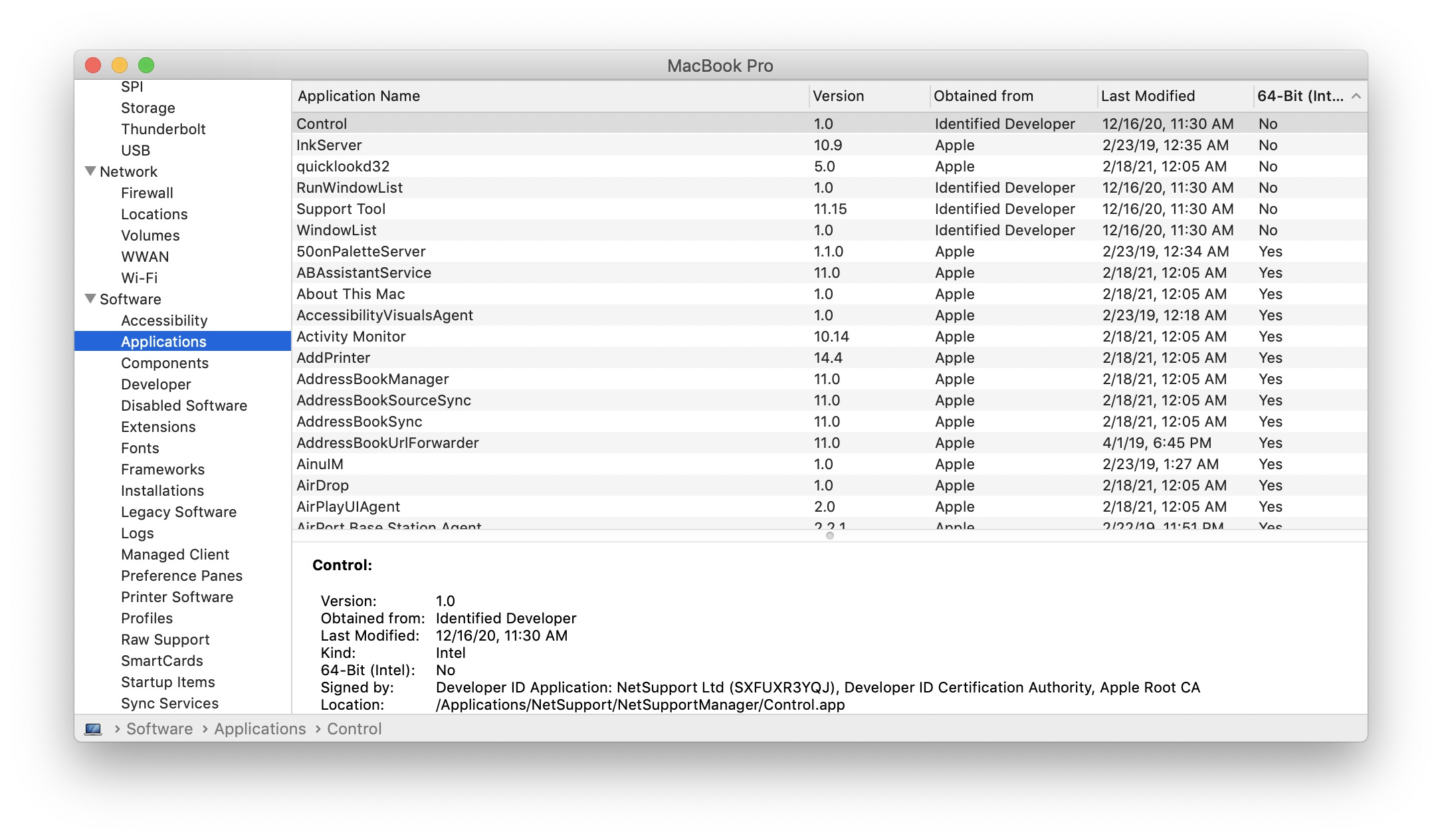
64 bit applications are the new
norm. Apple has been toying with 64 bit
since before the release of Intel, with the
G4 Altivec processing unit, and with using
the Core2Duo for expanding to 802.11n
wireless, and many different components.
Until now, it hasn't restricted access to 32
bit applications on the operating system.
A handy utility to discover if
your software will run in Catalina is Go64 from St. Clair software
The new System Requirements are (October 7,
2019 to November 11, 2020 shipped with it
new and can't be downgraded from Catalina):
- MacBook early 2015 (Machine ID in
Apple menu -> About This Mac ->
System Report -> Hardware ->
Machine ID of 8,1 shipped with
10.10.2 or later)
- iMac Late 2012 12,1 (Shipped with
10.8.2)
- MacBook Pro Mid-2012 9,1 (shipped with
10.7.3)
- Mac Mini Late 2012 6,1 (shipped with
10.8.1)
- MacBook Air Mid 2012 5,1 (shipped with
10.7.4)
- Mac Pro 2013 9,1 (shipped with 10.9.1)
This means no Mac that shipped with 10.6
will run Catalina, without a special
hack that is unsupported. It is also
the first operating system that will not run
supported on the original Mac Pro chasis
Macs from 2010.
A notable bug with Catalina is that Mac OS X
Mail may suffer data loss without warning.
However, it may be the result of people trying
to use system optimizers, which I warn against
on my Mac OS X
speed FAQ.
If you want to attach a 10.13 or
later system to a 10.12.6 or older system, it
has to be formatted HFS Extended GUID.
APFS only works on older systems as network
file shares. Target
Disk Mode and including an older operating
system on the same hard drive, or external
hard drive will render those newer systems
unreadable to the older ones if they are
formatted APFS. Apple by default renders all
10.13 or later systems on solid state media as
APFS.
Apple's last software update for
10.15.7 was released January 26, 2022 only on
Apple menu -> About This
Mac -> Software Update and the
web.
September 13, 2021 Safari 14.1.2 updated
without version change via Apple menu ->
About This Mac -> Software Update.
July 22, 2021 Apple released a 2021-005
security update Mojave.
April 27, 2021 was the last update issued
via https://support.apple.com/en_US/downloads
Apple released Mojave on September 24,
2018. I will be updating info regarding its
release on Apple
Support Communities. Only one 10.6
compatible Mac is now compatible with
Mojave, after updating to El Capitan first.
The rest of the Macs that are compatible
with it have newer operating systems.
The 2020-004 security update for Mojave has
a bug with the screen saver getting stuck.
To repair delays in the screen saver, "The
workaround is to choose a non-picture screen
saver such as Flurry, Message, etc."
(special thanks to Apple
Support Communities member dialabrain for this
report).
If you want to attach a 10.13 or later
system to a 10.12.6 or older system, it has
to be formatted HFS Extended GUID.
APFS only works on older systems as network
file shares. Target
Disk Mode and including an older operating
system on the same hard drive, or external
hard drive will render those newer systems
unreadable to the older ones if they are
formatted APFS. Apple by default renders all
10.13 or later systems on solid state media
as APFS.
Mojave runs on all Macs between the ones
below and the September 24, 2018 to October
7, 2019 Macs came with Mojave and could not
be downgraded from Mojave.
(Machine ID is in Apple menu ->
About This Mac System Report or profiler
under hardware info):
• Macbook early 2015 Machine ID 8,1 which
shipped with 10.10.2
• MacBook Pro mid-2012 Machine ID 9,1 which
shipped with 10.7.3
• MacBook Air Mid-2012 Machine ID 5,1 which
shipped with 10.7.4
• iMac Late 2012 machine ID 12,1, which
shipped with 10.8.2
• Mac Mini Late 2012 machine ID 6,1, which
shipped with 10.8.1
• Mac Pro 5,1 from 2010, which shipped with
System Specific 10.6.4 and is not capable of
running internet restore, and requires a special graphics card.
10.13 High Sierra
June 14, 2021 - Microsoft's drop of Office 365
support for High Sierra has created an issue
whereby many corporate users are finding their
profiles no longer work due to Azure
updates. There is no rhyme or
reason to it, some people run Outlook without
issue, and others may find their Word, Excel
and Powerpoint applications suddenly go read
only. For some control-clicking
the Outlook application, and using
the Applications ▸ Microsoft Outlook ▸
Contents ▸ SharedSupport Profile Manager
to delete all profiles and reload them
works. For others only using the
web based version of Outlook works.
For those we have tested, logging in the 365
account twice restores writability to the
Word/Excel/Powerpoint applications.
Thankfully Outlook has more features in
the web version than the stand alone version
in the favorites. This update was
added to this page on July 27, 2021, after
several tests in a corporate environment to
discover why the issues happen.
November 12, 2020, Apple's last
patch for High Sierra called 2020-006
was released, to anyone who has
installed 10.13.6
combo update. Note Safari after
this point is no longer supported on High
Sierra. See my browser
page for references to more current
browsers.
June 1st Apple released a patch for
the May 26, 2020 release of Security Update
2020-003 on the same link as the earlier
release.
On September 25, 2017 Apple released 10.13
High Sierra. Its System
Requirements on the low end are
identical to its predecessor Sierra although
some new features may require newer
hardware. Backup your
data before making an installation.
Also, unlike Sierra, your Mac must be
running a minimum of Mountain Lion.
Do not depend on older news of compatibility
than the official release date, as that may
pertain to prerelease beta software
compatibility, which may differ from the
release version. RoaringApps
has continued its third party updating of
both iOS and Mac OS X software
compatibility. News on High Sierra will be
forthcoming.
Apple's 10.13 is still available for
download for people with Mac OS X 10.8 or
later. This will also offer compatibility
with iTunes 12.8, to synchronize with iOS 12
devices.
If you want quicker news, please consider
donating to my Tech
Support. If you want support for
Apple's new hardware acceleration, you will
need: iMac: late 2015 27" or newer, 2017
21.5" or newer
MacBook: early 2016 or newer
MacBook Pro: late 2016 or newer
See everymac.com
to help identify your Mac.
10.13.1 was noted to have a serious security
hole due to root account vulnerability. Mac
OS 10.13.2 removes this security hole.
10.13.5 was an update that had
many changes over 10.13.4, and introduced an
update procedure that was very different
from its predecessors. During the cycle of
boots, of which there are about 5, one
included a firmware update on the iMac 11,3
and numerous times the screen would blank
out in the middle of it showing the update
progress bar being midway, and only a minute
remaining. Lastly, when it was done, on a
computer with a login at startup, the
"setting up your Mac" non-modal dialog that
typically appears when you first install an
operating system shows up, acting as if an
erase and install had just been performed.
The operative words here are Don't Panic! If
you shut down in the middle of an update,
you can lock yourself out of your computer.
It may take an hour.
Lastly, if you download the combo update, it
may be too big to install on its own if your
space is low, and won't warn you until after
it tries to configure the update. At least
it will keep things unchanged if that
happens and tell you to use the App Store
instead.
If you want to attach a 10.13 or
later system to a 10.12.6 or older system, it
has to be formatted HFS Extended GUID.
APFS only works on older systems as network
file shares. Target
Disk Mode and including an older operating
system on the same hard drive, or external
hard drive will render those newer systems
unreadable to the older ones if they are
formatted APFS. Apple by default renders all
10.13 or later systems on solid state media as
APFS.
Here are the requirements with the
Machine ID (x,x) as stated in the System
Profiler/Report in Apple menu -> About
This Mac for Mac OS 10.13 High Sierra:
MacBook (Late 2009 or newer) 6,1 is
compatible with 10.6.3 retail.
See https://discussions.apple.com/docs/DOC-250003506 for
discussion on upgrade paths. The
releases later than March 14, 2010 but older
than July 2011 were compatible with the
internet recovery mentioned on the next
machine.
MacBook Pro (Mid 2010 or newer) 6,1 this
came with system specific discs, and needs a
firmware
for internet recovery up until
the July 2011 or later releases.
MacBook Air (Late 2010 or newer)
3,1 this came with system specific
discs, and needs a firmware
for internet recovery up until
the July 2011 or later releases.
Mac mini (Mid 2010 or newer) 4,1 this
came with system specific discs, and needs a
firmware
for internet recovery up until
the July 2011 or later releases.
iMac (Late 2009 or newer) 10,1 is
compatible with 10.6.3 retail.
See https://discussions.apple.com/docs/DOC-250003506 for
discussion on upgrade paths. The
releases later than March 14, 2010 but older
than July 2011 were compatible with the
internet recovery mentioned on the next
machine.
Mac Pro (Mid 2010 or newer) 5,1 came with
system specific discs and is not compatible
with internet recovery. Only 2013 and
later releases supported internet recovery.
Sierra was released September 20, 2016
You may find software compatibility sites
already stating what is compatible with it. Do
not trust those reports, until those reports
are published after the official release of
Sierra.
Macs must have a minimum of 10.7.5, Lion with
all the security updates installed to install
Sierra. Note: this only matters if you already
purchased the Sierra download before High
Sierra's release.
On January 25, 2018 Apple released a security
update.
Apple has dropped the 'X' moniker from Mac OS
in the release of Sierra.
Apple may elect to change features at the last
second, as it has done on countless operating
system improvements before. Note, download
times may be longer than usual on first
release. Backup
(link explains how) your data before you
install anything.
Apple had kept the same minimum hardware
requirements for Mac OS X 10.8 through 10.11.
10.12 requirements have changed the minimum
requirements.
Here are the requirements with the Machine ID
(x,x) as stated in the System Profiler/Report
in Apple menu -> About This Mac for
Mac OS 10.12 Sierra:
MacBook (Late 2009 or newer) 6,1 is compatible
with 10.6.3 retail. See https://discussions.apple.com/docs/DOC-250003506 for
discussion on upgrade paths.
MacBook Pro (Mid 2010 or newer) 6,1 this came
with system specific discs, and needs a firmware
for internet recovery up until the
July 2011 or later releases.
MacBook Air (Late 2010 or newer) 3,1 this
came with system specific discs, and needs a firmware for internet
recovery up until the July 2011 or
later releases.
Mac mini (Mid 2010 or newer) 4,1 this
came with system specific discs, and needs a firmware for internet
recovery up until the July 2011 or
later releases.
iMac (Late 2009 or newer) 10,1 is
compatible with 10.6.3 retail.
See https://discussions.apple.com/docs/DOC-250003506 for
discussion on upgrade paths.
Mac Pro (Mid 2010 or newer) 5,1 came with
system specific discs and is not compatible
with internet recovery. Only 2013 and
later releases supported internet recovery.
10.12.4 is the first system that Apple
included Two factor authentication. When
you use this to login iCloud Accounts, and
other Apple Accounts for the first time on a
system, a code will be generated on all
devices using the same Apple account to
confirm your allowing that device to use
it. Older systems will not see it,
making password recovery of Apple accounts
more difficult for them.
10.12.6 is now available. For updated
downloads, visit my
Jaguar and Up page
This information is available on Apple's
Sierra Requirements page Safari 12 is
available for Sierra or later.
Same minimum system requirements exist under Mac OS X 10.8 and later.
* Caution *
Mac Pros 1,x and 2,x upgraded to El Capitan
through the unsupported hack may be rendered
useless with 2018 security updates to El
Capitan
iPhoto has special notes under 10.10 Notes
There are known Microsoft Office issues,
addressed by Microsoft on their knowledgebase.
Software tested before that date may not work
with the operating system.
iOS 12 will download under 10.10.5, but
reports are coming in that syncing only works
under 10.11.6 and later with iTunes 12.8.
For more information, I will be updating this
tip as it becomes available.
Some anomalous POP E-mail. issues have been
reported on Apple Support Communities. IMAP
e-mail is by default server based, and if you
trust your internet provider to back it up,
may be a better solution. Moving from POP to
IMAP is something you have to do with care,
since by default POP is based on storing
everything on your Mac. Make sure to backup your Users
-> yourname -> Library -> Mail and
Mail Downloads folders if you are using Apple
Mail before upgrading.
There are also issues with signatures not
working at all in Mac OS X Mail.
AccountEdge has also noticed there is a bug
when mailing PDFs directly from Mac OS X Mail.
They recommend using the Print window's
built-in PDF -> Mail PDF function when you
go to print a PDF.
You should really at least backup everything
to two separate destinations that are not
touched by the computer before upgrading or
until after the upgrade is complete. Be sure
to look at Roaring
Apps for compatible applications that
are compatible, and ignore entries prior to
September 30, 2015 stating they are El Capitan
compatible. RAW updates for 10.11. exist here:
Download
1844.
Printer and scanner driver issues with
Yosemite are covered with more details on my Mac OS X printers page.
El Capitan has scrubbed Repair Permissions
from Disk Utility. This means you'll have to
rely on an Apple update that includes it to
repair your permissions. Look for combo
updates you can apply repeatedly. Of course
10.11.1 does not have a combo update.
10.11.2 through 10.11.6 have also been made
available. There is a command line repair
permissions option if you really need
it. Apple released a security update on
January 25, 2018.
Safari 11.1.2 is the last version of Safari
for 10.11.
Use the combo
update for 10.11.6 (if running an older
10.11) to install iTunes 12.8 to be able to
use its iOS 12 synchronization capabilities.
10.11 is the minimum operating system to
install 10.14 directly from.
10.11.6. is the oldest system that
has complete access to iOS 14 synchronization,
backup and purchases on iTunes. 10.12.4 is needed for multifactor
authentication of Apple accounts and
password resets.
Yosemite was released 10/16/2014. Same system
requirements as 10.9. Software tested before
that date may or may not work at third party
download sites. Additional Yosemite updates
from 10.10 to 10.10.5 may be found on my page
Mac OS X Updates
Jaguar and above, and further security
updates may be found on Apple
Support downloads Be sure to look at Roaring
Apps for compatible applications that
are compatible, and ignore entries prior to
October 16, 2014 stating they are Yosemite
compatible.
iPhoto is dropped by Apple in favor of a new
Pictures Application. For some, keeping iPhoto
is important past Mac OS X 10.10.2. If you are
one who likes it, this Apple
Support Communities user tip explains
how you can keep it. Apple released Security Update 2017-003 for
Yosemite
Mac OS X 10.10.5 is not compatible with iTunes
12.8's ability to synchronize with iOS 12
devices. Instead it is recommended you:
1. Use Image Capture to copy your photos and
movies to your Mac from the iOS device
2. Use iCloud to backup everything else except
your ripped music. Your ripped music will have
to become playlists on external storage that
can be linked via WiFi or lightning port.
3. If 1 or 2 are not ideal, upgrade to Mac OS
X 10.11.6 or later to use iTunes 12.8's full
functionality. For those with Macs with 10.6.8
you can upgrade directly to Mac OS X
10.11.6. This gives you complete
access to synchronization and backing up of
iOS 14.
For those with Macs running 10.8 or later, you
can upgrade directly to Mac OS 10.13.
For those who downloaded Mac OS X 10.11.6 and
it still appears in your App Store purchase
section who are running 10.7 or later, you can
install 10.11.6 from there.
On February 25, 2014, a critical security flaw
was corrected in all versions of 10.9 with the
10.9.2 update (earlier versions of Mac OS X
are unaffected): 10.9.2 Combo. A similar
flaw was corrected on iPhones, iPad, iPod
Touch with the iOS updates below (iOS 5.x and
earlier are unaffected).
Users of iOS 6 or later should upgrade to 6.1.6
Users of iOS 7 or later should upgrade to 7.0.6
On October 22nd, 2013, Apple released 10.9
Mavericks for a free download for anyone with
Mac OS X 10.6.8 or later and the same hardware
requirements as 10.9. Compatibility though may
vary from 10.8. Like 10.8 and 10.7 before it,
there is no Rosetta (PowerPC Mac, pre-2006)
application compatibility except through a hack.
Epson and Canon drivers were released
immediately after 10.9's release. Backing up your data
prior to installation, should be done as
always. Links for the drivers, and other bugs
are currently noted on this user
tip Be sure to look at Roaring
Apps for compatible applications that
are compatible, and ignore entries prior to
October 22, 2013 stating they are Mavericks
compatible.
Backup
your system, and you can upgrade your
10.6.8 or 10.7 system directly to
10.8 is now available for direct
download. Keep in mind any
system that can run 10.8 can also run
10.11.6. You should only run
10.8 if you are sure your software does not
work with 10.11.6.
10.8.5 is now available. Before you upgrade,
be sure to read the tips below for upgrading.
This user
tip I wrote on Apple's board covers the
scope of my knowledge about Mountain Lion. Be
sure to look at Roaring
Apps for compatible applications that
are compatible, and ignore entries that
predate Mountain Lion's release July 25, 2012.
10.8 is the minimum operating system to
install 10.13 from.
These Macs support 10.8 through
10.11.6 (x,y indicates the Machine ID found in
the System Profiler App or System Report link
Apple menu -> About This Mac):
iMac 7,1 and later (mid 2007 and later)
MacBook 5,1 and later (Late 2008 and later)
MacBook Pro 3,1 and later (mid 2007 and
later)
MacBook Air 2,1 and later (late 2008 and
later)
Mac Mini 3,1 and later (early 2009 and
later)
Mac Pro 1,x and 2,x have two solutions in link 1 and link 2. 3,1 (early
2008) and later have built-in official
support.
10.7 Special Notes:
From my user tip on Apple Support Communities,
that is currently being considered, I'm
mirroring the info on my website. Note, there
is now a Supplemental update to 10.7.5
which should be applied after backing up
your data and making sure your software and
hardware is 10.7.5 compatible. These are
the most common Lion Q and As that are able to
be answered as of this time. Additional
answers will come as soon as we've had a
chance to upgrade.
After backing
up your 10.6.6 through 10.6.8 system,
Apple has made Lion available for direct
download!
Q: What are the
system requirements of the Lion upgrade?
A: Core2Duo, Core i3, i5, i7, and Xeon Intel
CPUs with 2 GB of RAM in a Macintosh computer
with 2 GB of RAM, and 4 GB (7 GB after
installed) for downloading from the Mac App
Store (Available in 10.6.6 and later).
Unofficially, past upgrades have arbitrarily
also required an additional 15% of the hard
drive to be free for data.
Read
this tip before upgrading to 10.7 or later
as no software written for PowerPC Macs will
run on 10.7 or later.
Q: What applications
are compatible with Lion?
A: http://roaringapps.com/apps:table
provides a nice third party editable listing
for people to include the compatible
applications. Many of these compatibility
entries came from before Lion's release.
Please verify they are correct now that it has
been released, and help edit it for more
accurate data. Be sure to include any update
version of Lion post release that you have
found is or is not compatible with it, for the
help of others who may be upgrading to Lion
the first time. Additionally, as it was
released, there is no Rosetta. This means any
application that is stated to be PowerPC in
the System Profiler, will not work with Lion,
and needs a comparable application or upgrade
to be compatible. The System Profiler is in
Apple menu -> About This Mac -> More
Info. Intel and Universal applications are on
the whole supported, though may still need
some tweaking before every feature is
compatible.
Q: Are there any
pitfalls to watch out for?
A: With all upgrades, backing
up your data at least twice has been a
given. Hardware can fail independently of
downloads and upgrades, though may happen
simultaneously. Software may be found to be
incompatible that has not been tested with the
new upgrade, or combination of other software
that might be installed with the upgrade. It
is also strongly recommended once your backup
is complete, to shut down your computer,
remove all but Apple wired keyboard and mouse
(notebooks remove all input devices). Then
once done, reboot, and go directly to the
upgrade distribution system available. Third
party system tools, modification, and
"maintenance" applications should be verified
as compatible, or removed until known to be
compatible. Check with developers how to
remove if it is essential to use Lion before
those applications become compatible. Most
"maintenance" tools that deal with system
cache, prebinding, are not really maintenance
tools. Ask on forum when are the appropriate
times to use them before assuming they should
be used for upgrades or otherwise.
10.7.4 introduces some new pitfalls, which
hopefully will be resolved soon, as both home
sharing and internet sharing don't work as
well as expected.
Q: How can I get
from 10.4 or 10.5 to 10.6.6?
A: Purchase a 10.6 retail installer from an
Apple retail or third party reseller. It has a
picture of a Snow Leopard on the DVD, and does
not say Upgrade, Dropin, or OEM. Install it,
and then install the 10.6.6 combo update from:
http://support.apple.com/kb/DL1349
Q: Is it true
that I can only get it from the Mac App Store?
A: No. Apple offered a $69
USD version on a thumb drive. Some may
not like the security a thumb drive offers a
DVD. You can install on it on a DVD or Thumb
drive presently, which I'll explain later how
to do, as long as you honor to the license
agreement of the Mac App Store. The
Thumb Drive still requires 10.6.6 minimum be
installed for an upgrade and install, however,
an erase and install can be done without
purchasing 10.6 or 10.5 for Intel Macs that
have older operating systems. Of course this
means losing all the data on the machine
unless it is backed up. If you feel Apple
should still offer a DVD, you can post
feedback here:
http://www.apple.com/feedback/macosx.html
Q: If you do not
create a thumb drive or DVD of Mac App Store
version, or wait for the Thumb drive, what
limitations can I expect?
A: First off the 7 GB space limitation on the
hard disc after it is installed. Secondly, the
size of the download file requires significant
time, unless you have a high speed broadband
connection. Times expected are below -
4 GB at:
5Mbps is 2 hours.
at 1 Mbps is 10 hours.
at 384 kbps is 27 hours.
at 56k kbps is 184 hours (nearly 8 days).
If you include the 10.6.6 combo update of 1.06
GB
add 29 minutes for 5 Mbps
145 minutes (2 and 25 minutes) for 1 Mbps
6 and a half hours for 384kbps
A 24 hour day and 15 hours (for a total of a
minimum of 39 hours) for 56kbps
Remember the retail 10.6 currently does not
include the App Store, and those upgrading
from 10.5.8 or earlier will need to both buy
the retail 10.6, and download the combo 10.6.6
update, not to mention ensure they have the
correct processor and 2 GB of RAM. Finally
once it is available, you'll have find out how
long approximately it takes to install after
the download is complete.
These times do not include installation time,
which on a MacBook Pro 3,1 15" installing on a
Firewire 800 Newertech Voyager with
WD10ACS-322J80 drive, 10.6.7, took 1 hour and
a half to complete the installation from
double clicking the install command to the
registration screen. These times may vary by
connection speeds from a non-dedicated
connection, or background application usage of
the internet. Any applications running when
the installation process begins might
interfere with the installation itself, and
they should be quit first.
Q: How do I create
a Flash Drive or DVD installer from the Mac
App Store version within license
agreement terms?
A: First off, note, Apple has announced a $69
version on a Flash drive will become available
for those without high speed internet in
August 2011. If waiting that long for
Lion compatibility is not desirable, the
installer just before it starts has in its
package contents an InstallESD.dmg file a DVD
burnable image to install on additional
computers in the home without downloading over
again. So if you desire to reinstall without
an extra internet download, extract that file,
by selecting the installer in the dock, and
control-clicking it, and revealing it in the
Finder. Next Control-mouse click it, and
select show package contents. Inside that
folder is a Shared Support folder. That's
where you find the called InstallESD.DMG. Disk
Utility can then be used to restore that DMG
to either Flash drive or burn a DVD as long as
you keep within the number of copies and
location of copies the license agreement gives
you license to use.
Q: If I
purchased a Mac recently, can I get it
cheaper?
A: Yes, visit http://www.apple.com/macosx/uptodate/
for details.
Q: When did Lion
become available?
A: It became available July 20, 2011 at the
Mac App Store. Later in August a USB Flash drive
version is expected to come to stores.
Q: Which Macs can
run Lion?
A: Look at Apple menu -> About This Mac
-> More Info, and see if you meet the
Machine ID and RAM requires under the
hardware. 2 GB is required for all These
Machine IDs will run Lion:
Mac Mini 2,1 and later
MacBook 2,1 and later.
iMac 5,1 and later.
All MacBook Air.
MacBook Pro 2,1 and later
All MacPros.
The Macs with the Machine IDs below will not
run Lion (x can be any number):
Mac Mini 1,x or PowerMac x,x
MacBook 1,x
MacBook Pro 1,x
iMac 4,x, 3,x, 2,x, 1,x
Snow Leopard is the first operating system
exclusively written for Intel Macs, but also
the last one that offered application support
for PowerPC Macs built-in. 10.6.3 retail was
the last version of Snow Leopard on CD, and
able to be installed on all new Macs released
from 2006 to March 15, 2010. Later Macs you
have to call AppleCare to get a system
specific disc to install 10.6 on, or find a
copy of Mac OS X 10.6 server to install 10.6
on virtualization tools such as Parallels.
July 20, 2011, new Macs all came with 10.7 or
later, and could only install Mac OS X from
the internet or their built-in restore
partition if the initial drive was in working
order and not erased. You will also need to
use the combo
update to 10.6.6 or later to get the Mac
App Store on 10.6 to be able to install Mac OS
X 10.7 or later. A few Macs shipped with
CoreSolo, or CoreDuo processors (which is
different from Core2Duo, i3, i5, i7, Xeon)
that could only install 10.4.4 through 10.6.8.
Go to Apple Menu -> About This Mac to
discover if yours is one that does that, these
Macs also incapable of installing faster than
802.11g WiFi built-in. 10.6.8
Security Update 2012-001 & Rosetta bug
Guest Account bug -
data loss
10.6.4 nVidia OpenGL
10.6.8 Hands Off bug
10.6.7 font bug
Security
Update 2012-001 version 1.1 is now
available through the original download link
and Software update. The bug affected Rosetta
(programs that used PowerPC CPU from pre-2006
Macs) drivers and applications. If this
doesn't solve the problem, please report to
Apple Apple
Feedback and AppleCare
A user reports that Hands off 1.2.4 can cause
a kernel panic, and upgrading to version 1.3.1
fixes the issue in Mac OS X 10.6.8. The user
report on Apple
Support Communities, and the software in
question can be downloaded from Metakine's website.
Apple released a patch to address issues with
fonts for 10.6.7 on April 26, 2011. it is in the knowledgebase
article HT4605
WARNING: If you use Guest accounts in Snow
Leopard, a bug has been that wipes the guest
account contents entirely. 10.6.2 is supposed
to fix this bug. Currently being researched by
some people on Apple Discussions as to the
cause. It may related to an earlier 10.4 bug
that I indicated below, about using the
Migration Assistant between PowerPC and Intel
Macs. Instead if you have done so, be sure to
backup at least
twice and if necessary, rename the Guest
account something else and give it admin
access until the issue has been resolved. You
can also migrate from PowerPC to Intel Macs
using the user tip on: https://discussions.apple.com/docs/DOC-2295
10.6.4 nVidia
and OpenGL bug
This bug may affect ATI and Intel GPU chipsets
as well, though nVidia is the first to attempt
to write updated driver updates to address it.
10.6.4 appears to not ask the GPU for enough
power to access OpenGL based software,
including many games that need it for
performance. Note, you may have to backtrack,
so be sure to backup a
copy of your 10.6.4 system without this
patch, so if Apple releases an update to
address it, you can be sure to apply the
update as Apple had originally intended it to
be updated. Adding nVidia's patch may be too
different from what Apple was expecting to
patch. If you have a GTX 285 card, here are
their drivers GeForce-MacOSX-19.5.8f03-driver.html.
Snow Leopard update requirements
August 28, 2009, Apple introduces Snow
Leopard, Mac OS X 10.6. The first operating
system totally divorced from PowerPC Macs.
However, it is the last operating
system to run PowerPC Mac compatible
software. Apple has made a direct
download from 10.6.8 to 10.11 if this software
compatibility is not of concern, and that will
enable those compatible Macs to link to iOS 12
with the iTunes 12.8.
This also means if you have one of these
machines:
- Mac Mini with only 2 USB ports on the
rear (as opposed to 4 or 5)
- iMac G5 or less (link
helps you identify iMac G5s from Intels)
- A PowerMac G5 or less (The Mac Pro looks
like
 , whereas the
PowerMac G5 looks like , whereas the
PowerMac G5 looks like  ) )
- Powerbook or an iBook
You won't be able to upgrade to Snow Leopard,
until you buy a newer Mac, introduced 2006 or
later. Those Macs are the Mac Pro, the Intel
iMacs, The MacBook, MacBook Air, MacBook Pro,
and 4 and 5 USB port Mac Mini with a minimum
of 1 GB of RAM (You can find this in Apple
menu -> About This Mac. 512 MB, 540 MB, 640
MB, or 768 MB of RAM won't cut it).
Furthermore, there are C!Net
Download, Wikipedia,
Macintouch
websites now for Snow Leopard compatibility.
If you find an error, please edit the Wiki and
e-mail Macintouch. Apple now has a document
about what it does when it finds incompatible
software for 10.6 during the
installation process.
Snow Leopard gets rid of third party
Contextual Menu Items. Thus if any application
you have relies on them, you'll have to find
an alternative application.
At the very minimum before installing Snow
Leopard, backup your
data at least twice, and dismount and
disconnect all third party peripherals.
Apple has now added to its knowledgebase
compatible scanners and printers for 10.6.
Some peripherals that run through System
Preferences will only run if the Get Info box
for System Preferences is set to 32 bit mode.
When System Preferences is not open, Go to
Hard drive -> Applications, and click ONCE
on System Preferences, and select Get Info
from the File menu to find the checkbox to
toggle 32 bit and 64 bit mode.
- In spite of the fact that Leopard comes
on a dual-layer DVD, all DVD drives
built-in to Macs with 867 Mhz or faster
processors could read dual-layer DVD
discs. Only the older DVD drives couldn't
write to them. This distinction has left
many confused. You do NOT need to get
another DVD drive even if your machine
can't write to dual-layer Discs just to
install or use Leopard. Dual-Layer DVDs
allow writing of up to 8.4 GB, on drives
that support them for writing. All DVD
drives regardless of age can read from
them.
- Leopard does not support 802.11n. This
may cause problems for people directly
connecting to routers whose firmware or
network has been upgraded to no longer
support 802.11g.
- Apple Knowledgebase
article on why Finder may not load with
External hard drives in 10.5.2.
- Apple now has a general troubleshooting
installation guide to installing Leopard
in Article
TS1541.
- Apple has noted an instance where an
installation may result in a blue screen
with Leopard on Knowledgebase
article TS1545.
- Check your Techtools, and Disk Warrior
versions are current for Leopard.
- Check with the the vendor who wrote the
utility before attempting to use with
Leopard.
- Time Machine has a known bug which will
will add extra space to the existing the
hard drive in the form of an invisible
file. Be sure to allow sufficient hard
disk space before installation of Leopard,
and use my How to
free up disk space? article as a
guide to free up enough space for Leopard
to run smoothly. Leopard needs a bare
minimum of 15% + 9 GB free of hard disk
space (24 GB of a hard disk needs to be
free on a 100 GB hard disk).
- Mac OS X 10.5 has no more Classic
compatibility according
to Apple. For more on the
implications of this, visit my FAQ on Migrating from
9 to X.
- Repair permissions is known to create an
error message of Warning:
SUID file.
- What to do if your Home folder
disappears: see
Apple Knowledgebase article TS1526.
- Time machine's behavior is not quite
what is expected, but once you understand
it you can make full use of its
capabilities. In this page: http://www.apple.com/macosx/features/timemachine.html
it says:
"Backing up to a full disk.
One day, no matter how large your backup
drive is, it will run out of space. And
Time Machine has an action plan. It alerts
you that it will start deleting previous
backups, oldest first. Before it deletes
any backup, Time Machine copies files that
might be needed to fully restore your disk
for every remaining backup. (Moral of the
story: The larger the drive, the farther
back in time you can back up.)"
Turns out you can turn on that warning, or
turn off that warning, but it makes no
difference, it will go ahead and start to
delete hourly backups more than 2 days
old! So you are better off making sure
that you don't delete files more than once
a day, and that way, you won't lose
information to time machine's need to keep
disk space clear on the backup.
- Western Digital has a new Firmware
for 10.5.2 and some of their drives.
- Some Firewire and USB hard drives which
don't mount will mount on 10.5.2 if their
power is turned on after the computer's
power is turned. This doesn't affect all
drives. Cooldrives and Otherworld Computing
are unaffected.
- Spotlight, the search engine which lets
you find files in both Tiger and Leopard
may under certain updates reindex itself.
Click on its menu in the upper right hand
corner which looks like the picture of a
circle with a diagonal line coming out of
its bottom right to determine if it is
still indexing. If all you see is a search
field saying Spotlight and nothing about
reindexing, then it isn't indexing. When
it is reindexing, file searches and
content searches of Apple applications can
return no results even when results exist
that answer your query.
Special Notes
for 10.4.8 through 10.4.10
In reverse chronological order, these have
been found to be issues with the particular
updates:
At least since 10.4.4, it has been possible
for Macs to lose sound in some applications
while not others. How to configure the Audio
Midi Application to fix this problem has been
documented with a solution on Apple's Knowledgebase
article 300832. Zapping
the PRAM has also solved this problem,
as long as the clock
battery (also known as backup battery.
Some Macs where it says n/a have a capacitor
which could age as well) is less than 4 years
old.
10.4.10 reportedly has a bad audio issue
whereby sounds turn into pop on the speakers
which now has been fixed with the Audio
Update 2007001 Intel, or 10.4.10
Intel Combo Update 1.1. I've not
experienced this thus far, and I just
installed 10.4.10. Also there were issues
reported with airport, firewire, and USB, all
of which I could not reproduce upon initial
tests. It goes to prove the methods below
still work. If you have issues with any of
these and 10.4.10, I suggest posting a new
topic thread on
Apple Discussions Installation and Setup for
Tiger board.
iTunes 7.3,1, Quicktime 7.2, and Rosetta:
It has also been found that some people who
have installed the Developer Preview version
of Java 6, or Developer Preview version of the
Developer Tools may incur broken Rosetta when
installing iTunes 7.3.1 or Quicktime 7.2. One
problem some may find is that if they are
running a Rosetta compatible application while
installing these updates, they may break
Rosetta.
If updating from a PowerPC to Intel Mac, or
migrating vice versa, do not
use the Migration/Setup
Assistent. Instead use Target
Disk Mode, or some form of networking,
or sharing media to move only those files that
are safe to
migrate from one operating system to the
next. If you have questions what can be moved,
feel free to e-mail me.
10.4.9 has been found to have a longer eject
key response than previous Mac OS X versions,
and trouble sharing with AFP in Mac OS 9 if
Mac OS 9 initiates the connection to a shared
Mac OS X folder. The latter can be fixed by
making Mac OS X initiate the connection
following my instructions.
Adaptec 2906 drivers may no longer work with
10.4.9. As a substitute Atto's
drivers were found to be able to work on
some configuration.
A system administrator named Sinjin Lindbeck
contacted HP technical support and discovered
that repairing permissions would fix this
problem they described to me:
"If running OS 10.4.9 and your HP printers,
scanners, etc start losing print jobs into the
ether or fail intermittently, perform a repair
disk permissions to eliminate the problem. I
spent about 4 hours on my own and finally
called HP. They said it was a problem with
their drivers and 10.4.9. Just thought I'd
share."
Repair permissions is in Applications ->
Utilities -> Disk Utility.
10.4.8 has been found to have an issue with
WiFi (Airport) on Intel Macs, and solutions
are currently still being sought for these
issues. Not all Intel Macs are affected, and
most likely if you follow the suggestions
below when you do upgrade, you won't have
trouble with the update. Given that people
have noted certain issues, I've posted their
solutions which have been found on my website. Also
Apple is aware of issues with RAID volumes according
to article 304511.
Apple also has an Knowledgebase article about
troubleshooting software updates, at: http://docs.info.apple.com/article.html?artnum=106692
which may also help you here.
If dmgs don't open after an update, move these
files to the desktop and restart:
/System/Library/Extension.kextcache
/System/Library/Caches/com.apple.kernalcaches/
Special thanks to robsterc
and Mac
OS X hints for that solution Additional
solutions are being found on this this
thread.
Installing full version
versus partial version updates
Installing a full version update (i.e. to
10.2, 10.3, 10.4) requires all the following
precautions, in addition to understanding the
different kinds of
installation available. Full version
updates are not free and are available only on
CD or DVD. The partial version updates which
the rest of this FAQ discusses are free for
download if you have the correct full version
on your system. I.e. These partial versions
will update these full version systems for
free:
Full version 10.0 have 10.0.1, 10.0.2, 10.0.3,
and 10.0.4 as updates.
Full version 10.1 have 10.1.1, 10.1.2, 10.1.3,
10.1.4, and 10.1.5 as updates.
Most of the following partial version updates
have Apple links still available, which I link
to directly off my Jaguar to El
Capitan update table:
Full version 10.2.x (where x means any
number), can be updated to 10.2.1, 10.2.2,
10.2.3, 10.2.4, 10.2.5, 10.2.6, (10.2.7 only
was released for certain G5 Macs), 10.2.8
Full version 10.3.x can be updated to 10.3.1,
10.3.2, 10.3.3, 10.3.4, 10.3.5, 10.3.6,
10.3.7, 10.3.8, 10.3.9
Full version 10.4.x can be updated to 10.4.1,
10.4.2, 10.4.3, 10.4.4, 10.4.5, 10.4.6,
10.4.7, 10.4.8, 10.4.9, 10.4.10, and 10.4.11
Full version 10.5.x has 10.5.1, 10.5.2,
10.5.3, 10.5.4, 10.5.5, 10.5.6, 10.5.7, and
10.5.8 as updates.
Full version 10.6 has 10.6.1, 10.6.2, 10.6.3,
10.6.4, 10.6.5, 10.6.6, 10.6.7, 10.6.8, and
10.9*, 10.10*, and 10.11 as updates.
Full version 10.7 has 10.7.1, 10.7.2, 10.7.3,
10.7.4, 10.7.5, 10.7.5 supplemental, and
10.9*, 10.10*, and 10.11 as an updates.
Full version 10.8 has 10.8.1, 10.8.2, 10.8.2
supplemental update, 10.8.3, 10.8.4, 10.8.5,
and 10.9*, 10.10*, and 10.11 as updates.
Full version 10.9 has 10.9.2, 10.9.3, 10.9.4
10.9.5 and 10.11 as updates.
Full version 10.10 has 10.10.1, 10.10.2,
10.10.3, 10.10.4, 10.10.5 and 10.11 as
updates.
Full version 10.11 has 10.11.1, 10.11.2,
10.11.3, 10.11.4, 10.11.5, and 10.11.6.
Later in this FAQ there are more finite
details on how these updates may be obtained
and for which platform they are available.
* 10.9 through 10.11 have been available
freely through the Apple App Store, except
10.9 & 10.10 are only available now to
people who bought Macs with those operating
systems prebundled on them. You may be able to
request one to become available for specific
software compatibility, or check Apple
Usergroups to find if someone has held
the original installer in its full image. If
you meet the same specs as 10.8
10.9, 10.10, and 10.11 should work. Although
each includes new software, which may require
more space in the end.
Also note, for Mac OS X 10.4 and 10.5, Apple
released them on DVD-ROM. If your Mac does not
have a DVD-ROM compatible drive, you will need
to get a Firewire DVD drive that is Mac OS X
bootable (such as those by Otherworld
Computing, or others listed on XLR8yourmac),
or the previously sold by Apple Media Exchange
Program replacement CDs (only available for
10.4). The disks will look like  . They may be available at
one of the Used
and Refurbished Mac shops. . They may be available at
one of the Used
and Refurbished Mac shops.
System
Specific restrictions
System Specific Disk Restriction note:
It is important to note, that installation of
operating systems from a different Mac model
will not always work right. Use only the disks
which come with the Mac in question, or newer
retail disks up to the hardware
limits of the Mac in question (retail
disks for Mac OS X look like,  for
Mac OS 9, for
Mac OS 9,  10.1 (Puma), 10.1 (Puma),  for 10.2 (Jaguar), for 10.2 (Jaguar),  for 10.3 (Panther), for 10.4 (Tiger), for 10.3 (Panther), for 10.4 (Tiger),  for
10.5 (Leopard), and for
10.5 (Leopard), and  for 10.6
Snow Leopard. There has been much debate about
this, however, a user tip, and these
knowledgebase articles all point towards that
fact: for 10.6
Snow Leopard. There has been much debate about
this, however, a user tip, and these
knowledgebase articles all point towards that
fact:
https://discussions.apple.com/docs/DOC-2016
http://docs.
info.apple.com/article.html?artnum=25517
http://support.apple.com/HT1159
http://docs
.info.apple.com/article.html?artnum=106176
http://docs.
info.apple.com/article.html?artnum=25497
http://docs.
info.apple.com/article.html?artnum=25784
If you are having trouble identifying which
Mac OS system specific disc you need for your
Mac, use my
guide on identifying Macs.
Steps for avoiding
update failures
The following fourteen suggestions apply to
all updates, with a 15th suggestion of how to
downgrade if you find yourself here after you
updated unsuccessfully:
1. Turn off any system that automatically
updates. This includes the following:
- Finder's automatic software update in
Apple menu -> System Preferences ->
Software Update -> Update Software,
uncheck the checkbox to the left of "Check
for updates [frequency pulldown menu]" You
can check those manually through Apple
menu -> Software Update. However, it is
recommended that you don't apply them
directly through Software Update and
cancel and update request by Software
Update. What you don't want is to suddenly
be alerted a software update is available,
and apply it without preparation. Hence
the reason why it is recommended the
automatic methods be turned off. The
downloads will become available on Apple's
website http://www.apple.com/swupdates.
Downloading them from there will give you
a chance to follow the tips below.
- Quicktime in Apple menu -> System
Preferences -> Quicktime -> Update
-> Uncheck "Check for updates
automatically." Visit Apple's
Quicktime website
http://www.apple.com/quicktime/ if
you need to update Quicktime.
- Third party automatic updates.
Frequently these are found in third party
software's Preferences menuitem found
either in the Application or Edit menu of
most applications.
2. Backup (link
goes to software available for backing data)
your data at least twice before any update,
and make sure you always have at least two
copies of all your data on another media that
won't be affected by the update. The reasoning
of this is two fold, if the update causes you
to not be able to access the media you have
your backup on, you'll have another set of
media that you can access it from once you
erase and install an older operating system.
And if you keep an extra set of backups of
your data, keep them in a safe place in case
something happens to the place your computer
is at. This includes having a backup copy of
the system update to get you to the prior
system without too much hassle after an
Archive and Install, as described in step 14
of this FAQ.
3. Make sure
the programs you need to run either require
that version of the operating system to run,
or can run on that operating system. If all
the programs you need and drivers you need can
run on your current system, don't upgrade! If
it isn't broken, don't fix it.
Along the lines of this train of thought,
Apple has released security
updates that require specific operating
systems to run. Most recently, update 2012-001 for
10.6.8 version 1.0 disabled certain
Rosetta (Rosetta indicates pre-2006 PowerPC
CPU based programs) applications and drivers.
Version 1.1 repairs it. Repairing
Permissions may fix this issue.
Permissions repair is no longer an option in
Mac OS X 10.11. However, there is an excellent
discussion on Malware on Apple
Support Communities for things you can
do to stave off both Malware and Adware.
Unfortunately these updates may not always
jibe with your existing software
compatibility. If security is important to
you, be sure to take normal security
precautions until you are able to update to a
more secure system. Such precautions include
the following:
- Backup your data
frequently
- Turn on the firewall in Apple menu ->
System Preferences -> Sharing ->
Firewall and leave all ports unchecked
that you don't need.
- If using wireless internet connectivity
over 802.11b/g/Airport, be sure you have
WEP or higher encryption enabled.
- Do not enable root account while
connected to the internet. If you don't
know what this is, by default root is
disabled.
- Do not download e-mail attachments from
sources you can't verify that they are
sending you an attachment that has been
virus scanned. Corollary, turn off the
preview pane of your e-mail program, and
any HTML rendering of e-mail so that it
does not automatically load the
attachment.
- Make sure your administrator and other
system passwords are secure. That means no
vowels, and a mixture of numbers and
letters at least 8 characters long. Some
older versions of Mac OS X it doesn't make
a difference how many characters past 8
characters have been chosen.
- If using high speed internet, use an
ethernet router, or wireless access
point/Airport Base Station with built-in
security features.
- You can download or buy anti-virus
software for the Mac, but you need to make
sure like with any other security update
that it follows your operating system
updates in terms of compatibility. At this
time there are no known viruses in the
wild, though some proofs of concepts have
come out, and most require "social
engineering" to succeed.
- To prevent Spyware from attempting to
phone home, you can download Little
Snitch, as well as Macscan.
- It has been found that Safari menu's
Preferences has a vulnerability under the
General preferences. Mac OS X 10.7 Lion's
Safari still has this vulnerability, and
it is a checkbox that says "Open 'Safe'
files after downloading." Uncheck it to
improve the security of your machine.
- For 10.6 and above there is a Malware
removal tool such as DetectX,
and one that locates software you haven't
any knowledge of installation on Etrecheck.
Note for Etrecheck, ask on forums such as
Apple
Support Communities to verify if a
certain software is part of the operating
system before removing it.
Other than the above, be sure to read this section on
the latest security tips.
4. Updates necessitate in most instances a
repair of permissions before and after. Which
instances those are is still unclear, even
though Apple makes no judgement call as to
when to repair permissions. But given that
numerous people have found updates failed when
permissions weren't repaired, and I've seen it
happen to myself, I recommend it. I do not
recommend using any cache repair, prebinding
software, or other swiss army knife utility to
do this. Only use Disk Utility or the Repair
Privileges utility depending on your Mac OS X
version. In Mac OS X 10.2 through 10.4.9,
repair permissions has been available through:
Hard drive -> Applications -> Utilities
-> Disk Utility -> select hard disk in
Disk Utility -> click on First aid
Mac OS X 10.1.5 was the first version of Mac
OS X where permissions could be repaired using
a special Repair
Privileges Utility.
5. They require you have at least 3.5 GB (for
10.2 or 10.3), 4.5 GB (for 10.4), 9 GB (for
10.5 Leopard) of disk space free (more if you
burn CDs or DVDs with the Finder. For every CD
or DVD burnt with the Finder you'll need an
additional equivalent space to the media you
are burning) before you install the update. An
arbitrary 15% empty has been found to be best
for Mac OS X in addition to this amount. In
the end that means for Leopard if you have a
100 GB hard drive 24 GB needs to be free.
This amount of space is significantly
decreased by 10.4's improved CD and DVD
burning, though not completely eliminated.
Articles 61339
and 302276
explain pre-Tiger and Tiger's burning methods
respectively. In Mac OS X 10.3, your hard disk
free space is located in the Finder's View
menu -> Show Status bar which appears at
the bottom of any Finder window. See my How to free up my disk
space FAQ to help you clear your disk of
non-essential files.
6. They require you don't have any third party
peripherals attached. If one of those
peripherals is a data storage medium like a
hard drive, camera media, or removable media,
drag its icon to the trash before detaching
the peripheral and make sure its icon is not
appearing in the Finder sidebar or when you Go
to Folder /Volumes/ if it isn't there.
7. Make sure automatic Energy Saver settings
for hard disk are turned off. If the hard disk
spins down while the update is being
performed, the update may not complete. Apple
menu -> System Preferences -> Energy
Saver has options to allow the hard drive to
stay awake.
8. Check that any peripherals or third party
addon cards you are using don't require a
firmware update before you update the
operating system. If by accident you did leave
a hard drive that required a firmware update,
you may only be able to see that hard drive
after the update using Prosoft
Engineering's Data Rescue, or moving
that hard drive into another hard drive case.
To avoid that problem, be sure to dismount
(drag its icon to the trash on the dock) and
disconnect drives prior to performing an
update. This page has links to various kinds
of software and hardware support pages for Mac
OS X: http://www.macmaps.com/macosxnative.html.
Also, before upgrading to Mac OS X 10.2 or
higher, you must upgrade your system's firmware
if it needs it. Otherwise you'll end up with a
blank screen.
As part of this, you'll need to know how Apple
identifies those Macs. There is a new section on
the Mac OS X native page which helps in
identifying your Mac.
Once your firmware is up to date, make sure
your clock battery isn't too old. Once it is
over 4 years old, it may need replacing. All
desktop Macs that will run Mac OS X use a
standard 1/2 AA 3.6 V battery, you can buy at
Radio Shack (catalog item 23-026). The iMac
G4, G5, Intel, Mac Mini, eMac, and Notebooks
though use a specialized battery that only a
service center can replace known as a backup
battery on Apple's
article 86181. Some notebooks have no
backup battery, and use a capacitor instead.
For those that use a capacitor and end up
unbootable, sometimes a zap
of the PRAM helps. Zapping the PRAM can
be done also on machines with known good
batteries. Never zap your PRAM unless you know
the battery is newer than 4 years. Even an
almost totally drained battery can cause
problems before the clock resets itself on the
computer.
9. Check any third party system utility
programs you use and haxie type software (the
old company that made these software no longer
has the domain name of Haxie) don't need to be
updated before you update.
10. Make sure all Apple Applications are
stored in the same folder they were in when
you first installed the operating system,
otherwise they may not get updated.
11. Make sure the hardware doesn't have any
problems according to Apple's Hardware Test
CD. The Hardware Test comes in three
varieties. Those for early Macs that will
install Mac OS X which are stand alone silver
colored disks that came with your Mac. These
you can boot from Apple menu -> System
Preferences -> Startup Disk, the 'C' key,
or the Startup Manager (Intel
version, PowerPC
version). If you lost the original disks
that came with your Mac, Call AppleCare
for replacement disks. If you bought the
machine and they didn't come with the original
disks, contact the seller and ask them for the
disks, or for them to Call
AppleCare if they lost them. The seller
can not hold on to the original disks as they
are only licensed for use with machine they
came with.
12. When installing the update, and this has
been true at least through 10.4.8, the
"Combined" (combo) update will sometimes work
better than the "Delta" and/or Software Update
version of the update, or even repair issues
that happen with that update. The updates are
listed on this Jaguar
10.2 through El Capitan 10.11 updates tables
page. The "combined" (combo) updates are the
ones that can update more than just one
operating system version. The delta updates
can only update the preceding system version.
If you choose to use software update, and it
does not appear to be working, follow these
tips by Apple in Article
106695.
13. If the update does not apply itself
correctly it may give you an error that it
failed to install. Be sure if this happens to
reapply the "combined" (combo) update as
mentioned in step 12.
14. When updating, make sure you have a
healthy system before you update. Some
utilities to measure a healthy system can
themselves cause problems to prevent an update
from being successful. Ask a technician if you
are currently having issues with cache, fonts,
or the directory, before attempting to use
such utilities. If you attempt to use them
without first having a backup (mentioned
earlier), you could be in worse shape, than
first backing up. This also means if you have
anything that won't run on your system that is
supposed to be able to run, fix that before
updating! An update will only add new
features, and refine others. Fix any issues
which may cause kernel
panics and directory
problems before updating. In addition,
make sure you don't have any bad preference,
permissions, font, or cache issues using the utilities on the Mac
OS X speed FAQ. If you have any doubt
about the health of your system, ask the Mac
community if something is abnormal first
before updating.
15. If you need to
downgrade to see if an issue existed before
your update, you can Archive and
Install and apply the previous
combined (combo) update. Note, this will
only work with Mac OS X 10.2 through 10.3.9.
Later and Prior versions of Mac OS X require
you erase and install Mac OS X to get to the
previous operating system version. Note, when
installing an older operating system, be sure
to delete any Apple applications which existed
in the older operating system installation
first before proceeding, or move them to a
folder where Apple's installer won't see them
(i.e. someplace other than Applications or
Applications -> Utilities folder) as some
of those newer versions of applications won't
work in the older operating system. Either
method requires you already have a working backup system
(link goes to software available for backing
data) in place, as the problems you may be
having may be directly related to your hard
drive. In which case, only replacing the hard
drive and recovering from your backup will
work. In addition, Archive and Install is the
recommended way to upgrade to any newer retail
version of the operating system starting with
10.2. Do not use the installer disks from
another Mac, or the Upgrade disks to do this
Archive and Install, unless your Mac qualified
for the 10.2.7, 10.2.8 to 10.3 up to date
program which went on from October 8th through
25th 2003. For those Macs, you need to Archive
and Install the 10.2 disks that came with
them, and then use the Upgrade disks from the
program to Archive and Install again! Another
note, family pack CDs do exist, and they offer
a chance to install Mac OS X on more than one
computer as long as the Mac can install that
version of Mac OS X. The following article
helps define which version of Mac OS X came
with which Mac, and what minimum OS X version
can be installed: Apple
Knowledgebase article 25517 and 1159.
Downgrade suggestions I posted on Apple
Discussions as a more difficult, as this User
Tip illustrates. The good news is, now
Mac OS X Mail 10.4 can be converted back to a
format that 10.3 Mail understands, thanks to
two utilities: emlx
converter and Emailchemy.
Other than backing up, system
security is frequently a reason for failed
updates and upgrades.
Software from MacKeeper, to adware like
Weknow.cc, to Chromium web browser, to
Advanced Mac Cleaner are all signs of a
compromised system. To avoid most
compromising of systems:
1. Don't install new browser extensions when
asked.
2. Don't install system cleaners on Macs.
3. If you get an e-mail asking you to
contact for passwords or upgrades, delete
it, and do not click on links or attachments
from said e-mails.
4. Web browser popups from so-called update
sources can fool you into installing
something that will prevent future updates.
If you receive an unexpected popup, force
quit the browser with command-option-escape
key to bring up the force quit window, and
select the browser in the window called
Force Quit Applications and force quit it.
When you reopen the browser, hold the shift
key, and don't reopen the last browsing
session. If your browser does not start at
the expected homepage after doing this, you
may need to go through a Malware removal.
5. Before doing a Malware removal, check the
health of your drive with DriveDX, and run Etrecheck to determine
if you have any Launch Daemons or
applications that you don't recognize, or
startup items. If you do, you may need to
use EasyFind to locate all
instances on your hard drive of the said
program as well as run Malwarebytes and Avast. Use Apple menu
-> System Preferences -> Notifications
to disable any unnecessary notifications.
Malwarebytes can be run as a registered free
non-automatic scan version. Or it can be
removed, removing all the mbam files with
EasyFind. DriveDX use EasyFind to find all
binaryfruit files to be able to run it again
at a future date. EasyFind can find zeobit
files to remove for removing Advanced Mac
Cleaner, MacKeeper, and other files related
to those viruses. Please submit feedback to
abrody AT macmaps.com if you find any other
viruses that are hard to remove via these
normal means.
6. On Google Chrome, you can find find out
if your browser has been infected with the
URL Chrome://Policy.
Apple
Support Communities has discussed how
to remove one common Chrome virus known as
weknow.
CC Cleaner can uninstall
many software that don't come with
uninstallers of their own. Do not use it to
empty system caches as that can damage your
ability to launch other programs.
7. If uncertain about how to do these steps
yourself, I offer a $150 virus
cleanup that can be done remotely via
my homepage. with a copy of Anydesk.
8. Launchpad Manager lets
you remove items that were stuck in
Launchpad by malware and viruses that won't
remove otherwise, and help you avoid
reopening those programs in the future.
9. Keyloggers present
another problem for
troubleshooting. These are
programs you download that track your every
key stroke, opening up your passwords and
personal identifiable information like bank
account numbers, card numbers, healthcare
numbers for stealing and stealing your
identity. If your machine appears to
have been taken over
by some other service, and your data is backed up, you can
examine for keyloggers using Bigsur
Cache Cleaner or one of its older
sibling software. Keep in mind though
cache cleaners, plist cleaners, and
prebinding should not be run at
all. The Disinfect menu
will take care of Rootkits and Virus checks
which include keyloggers.
Additional tips for security are also earlier in
this page.
Many malware that I remove through my Macmaps.com
business are covered on this article.
You can rest assured any Mac or PC will have
a thorough checkup from me to remove the
last unwanted
software on your machine.
Rather than bore you with
the details, I've put this section at the
bottom of the FAQ for those who are
interested in seeing why I say a
mathematical improbability exists. The
Apple Guide, which was available prior to
the Mac App Store listed over 23000 items
that are Mac compatible. There is no way
in the age of the known universe (given
modern science's guess of about 10^13 to
10^27 years), that even a catalog of 63
possible hardware and software titles can
be tested with every possible combination.
Math says you need to use factorials for
such calculations and Google calculates 63
factorial seconds as 10^79 years.
Apple's
Java 6 patch for 10.7 and later
enables the ability to use Adobe Photoshop
CS4 at least through El Capitan.
Migrating
Files
Since SCSI was
introduced in 1991 on Powerbooks, fast
migration has been possible on most Macs.
With Macs that supported it, SCSI
Disk Mode made the older Mac an
external hard disk for the newer Mac.
Firewire
adapters allowed such Macs to be read to
Macs that had Firewire, and Mac OS X
introduced also a Migration assistant to
import data via Firewire, Ethernet,
Thunderbolt.
Provisos:
1. The PowerMac
G3 with built-in Firewire, did not support
target disk mode. The original
PowerMac G4 tower with PCI graphics board
slots did not either.
2. PowerPC data
transfer to Intel Mac is limited to
documents. Applications and drivers
should not be copied wholesale over from one
processor family to another. This can
result a slower Mac. The migration to
the new processor family started January 7,
2006. In 2020, Apple released
their own processor called the M1.
This may have similar ramifications
for target disk mode.
3.
Mini-displayports could easily be confused
with Thunderbolt. 2011 Apple changed
to Thunderbolt.
The difference
was clear with the lightning bolt icon next
to the port. Only the Thunderbolt
carries data.
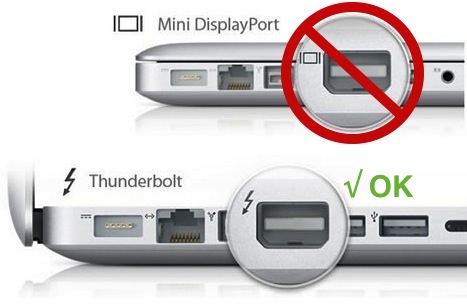
4. USB-3.0 and
earlier can not be adapted to Thunderbolt
for data transfer.
5. USB-C cables
used for charging Macs are not the same as
the thunderbolt cables used for data
transfer.
6. The T2 chip
discussed on my t2
lockout page limits Target Disk Mode,
when its security is turned on.
If a Mac
supported target disk mode, holding the 'T'
key at startup would enable that mode.
7. Apple
discusses Target
Disk Mode in more detail, as well as migration
assistant.
Additional Sources
My primary Mac
website lists many other Mac help
pages as well as discussions boards where
you can ask questions about the compatiblity
of updates with your system. Always check
the Mac community to see if certain updates
have pitfalls you may not be aware of before
updating.
Return to top
|
|
|
|